
How to Test an HTML Email in Gmail and Outlook
A template can look finished in a browser and still fail in the two inboxes that decide whether anyone reads it. Gmail clips long HTML, rewrites CSS, and is about to stop letting you send as a non-Google address. Classic Outlook still draws hairlines, drops background images, and ignores the layout CSS you used on the web. If you are about to send again after a quiet stretch, test the message in those two clients before you trust the file you saved last year.
Send the test from the platform that will send the campaign
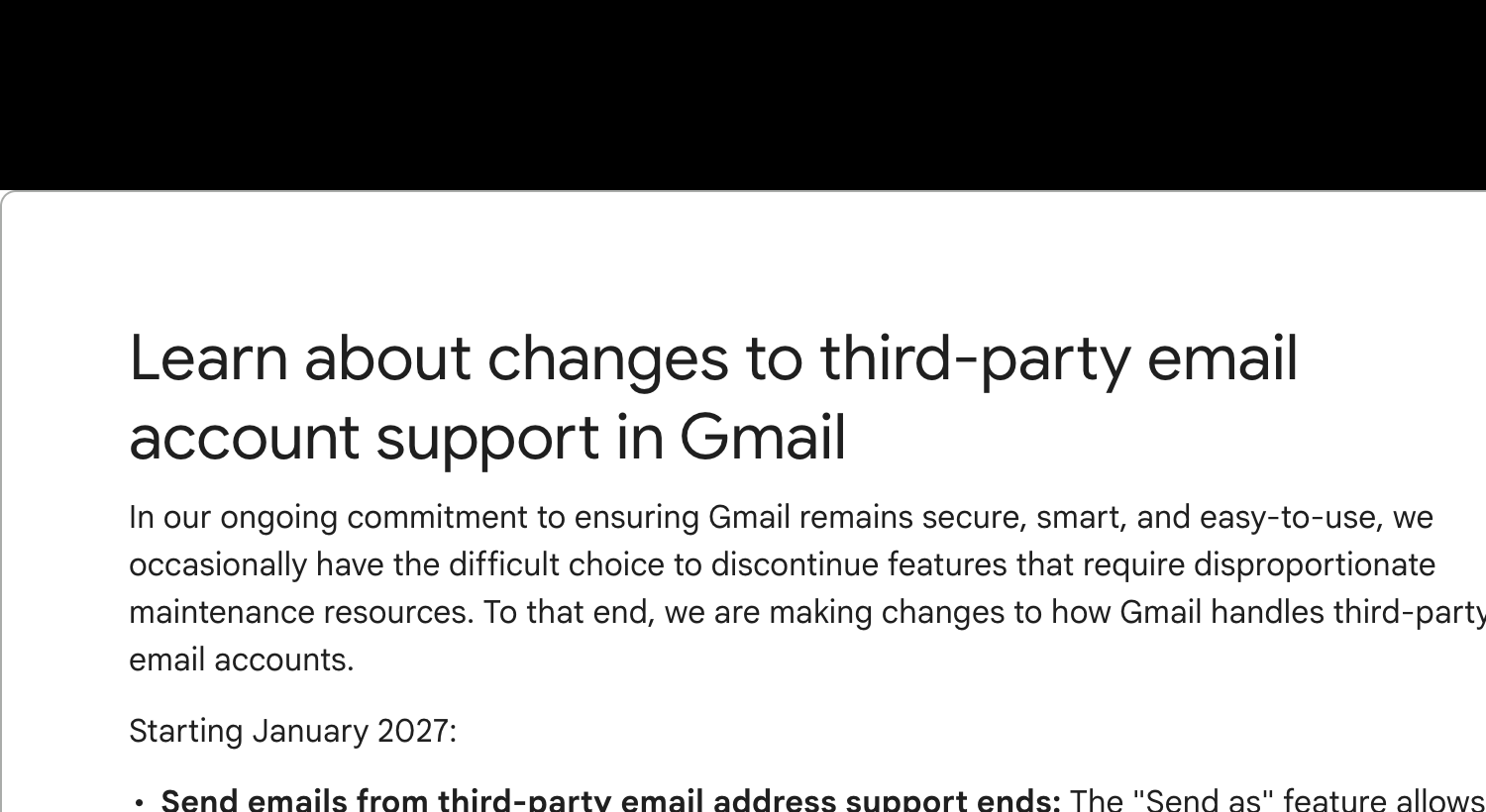
Google's help page says that starting January 2027 you will no longer be able to send mail from a third-party address in Gmail on the web or in the Gmail mobile apps. That is the "Send as" setting people use to make a personal Gmail compose window look like hello@yourdomain.com. Gmail-to-Gmail aliases and Google Workspace "Send as" are not part of the shutdown. The same page says you can still add and use non-Google accounts in the Gmail mobile app, and that other mail apps can still read Gmail over IMAP, POP, and the Gmail API. New setups may be restricted before January.
Read that as a testing rule, not only an account-settings change. Gmail is a good place to receive a test. It is a bad place to originate the test for a domain Gmail does not host. A compose window also will not show you what your sending platform does to the HTML. Pasting source into Gmail is a separate, older failure: the compose window treats tags as text. Neither path is a substitute for the message your subscribers will get.
Send the finished HTML from the platform you will use for the campaign, to a Gmail inbox you control and to a classic Outlook inbox if you have one. Then judge the received messages. All About Email #264, published November 9, is about restarting a newsletter that has been quiet: the list is staler than you remember, and a "do you still want this?" blast is not automatically safe. Last week's note on the November 6–9 Outlook.com rejections covered the domain half of that comeback. This is the template half.
What to look for in the Gmail copy
Open the received message on Gmail on the web and in the Gmail app. They do not match. Work down this list on both.
- Clipping. Gmail hides the rest of a message once the HTML is about 102KB and shows a "View entire message" link. The footer, the unsubscribe, and the legal line are what disappear. If you see that link, cut unused CSS, commented-out blocks, and embedded images before you call it done. Our Gmail sending guide walks through the same limit.
- Images. They need public
httpsURLs. A link that only loads when you are logged in will be a broken image for everyone else. Turn images off, or use a client that asks first, and read the alt text. If the offer only exists inside the picture, the text version of the email is empty. - CSS. Styles that matter should be on the element's
styleattribute. Gmail does not reliably keep a stylesheet in the head. Inlining is the fix to verify, not a build step you assume survived the send. - Dark mode. On the phone, check that text is still readable and that a white image has not turned into a white box. The dark-mode guide is the longer map. Gmail's automatic changes are not the same as Apple Mail's.
- The real links. Click the main call to action and the unsubscribe on the test message. A link that worked in the editor can be rewritten, truncated by clipping, or pointed at a staging host.
- Authentication, on the same message. Use Show original and read SPF, DKIM, and DMARC. A layout that looks right and a domain that fails are two different bugs. The header guide is the short version of what to trust in that screen.
Outlook bugs to fix before you call the test done
Classic Outlook on Windows still renders HTML with Microsoft Word. Our 2026–2029 timeline is the schedule: new Outlook becomes the default for managed enterprise tenants in an opt-out phase in March 2027, the classic toggle is not scheduled to disappear before March 2028, and classic Outlook's end of life is the second quarter of 2029. Until that audience is gone, a browser preview is not an Outlook test. Check classic Outlook and the new Outlook separately. A pass in one is not a pass in the other.
These are the failures worth fixing in the HTML, then confirming in the preview. The longer catalogue is in why Outlook breaks HTML email.
- Hairline gaps. Word measures in points. At 96 DPI, one pixel is 0.75 points, so 18px becomes 13.5pt and the leftover half point can draw a line through a colored section. Keep font size, line-height, padding, margin, and image dimensions divisible by 4. 16px is 12pt. Also set images to
display: blockwithborder="0", because an inline image plus a line break in the source becomes a gap. Look again at 125 percent zoom. Windows DPI scaling moves these lines even when the HTML did not change. - Columns.
flex,grid, and floats collapse into one stack. Side-by-side layout has to be a table with explicit cell widths. - Background images. CSS
background-imageis dropped. If the hero is only a background, classic Outlook shows an empty colored cell. Use a real<img>, or a VML fallback, and put a solidbgcolorbehind it so a failure is still readable. - Extra space. Word adds its own paragraph spacing. Set
margin: 0on the paragraphs you care about, andmso-line-height-rule: exactlywhere the line-height has to match the design. On every layout table, setcellpadding="0",cellspacing="0",border="0", andmso-table-lspace: 0pt; mso-table-rspace: 0pt. - Image width. Outlook ignores
max-width. Put the pixel width on thewidthattribute. Other clients can still use CSS to shrink it.
<img src="https://cdn.example.com/hero.png" width="600" height="320" alt="The offer, restated in text" border="0" style="display:block;width:100%;max-width:600px;height:auto;border:0;">600 and 320 are both divisible by 4. Outlook uses the attributes. Gmail and Apple Mail use the CSS. If a hairline is still there after the math is clean, match the html and body background to the email, then nudge the padding nearest the line by a few pixels and preview again. Change one thing at a time.
One pass before the list sees it
| Check | Gmail | Classic Outlook |
|---|---|---|
| The message came from the sending platform, not a compose-window hack | Required | Required |
| No "View entire message" clip | Look for the link | Not this bug |
| Images load, and alt text still explains the offer | Web and app | Including images blocked |
| Dark mode keeps text readable | Check the phone | Check if that version inverts |
| No hairline through a colored section | Uncommon | 100% and 125% zoom |
| Columns stay side by side | Usually fine | Tables only |
| Footer, unsubscribe, and the main link are visible and clickable | Below the clip point | After the spacing fixes |
| SPF, DKIM, and DMARC on that exact message | Show original | Same check on Outlook.com |
Postdrop's live client previews cover the render half when you do not have classic Outlook on the machine in front of you. They do not replace the authentication check on a message your platform actually sent. Do the preview while you are still editing. Do the inbox check on the final send.
Bottom line
Stop proving the email in a browser tab, and stop proving it by sending as the brand from a personal Gmail. That second shortcut is on a timer. From January 2027, Gmail will not send as a non-Google address.
Send from the real platform. In Gmail, look for the clip, the images, dark mode, and Show original. In classic Outlook, look for the hairline, the missing background, and the column that stacked. Then open the same HTML in Postdrop and compare those clients before the list does.
References: Gmail Help on third-party account changes, checked November 18, 2026, and All About Email #264 (November 9, 2026). Further reading: sending HTML in Gmail, why Outlook breaks HTML email, the Outlook 2026–2029 timeline, and how to test HTML emails before sending.