
How to Send HTML Emails in Gmail (Without Losing Your Formatting)
Every email developer eventually gets this request: "Can you just send it from my Gmail?" A client wants their newsletter to come from their own address. A founder wants a designed announcement without paying for an ESP. A recruiter wants a branded outreach template in their everyday inbox. And every one of them discovers the same wall: Gmail — with more than 1.5 billion accounts, the world's most popular email client — has no HTML editing mode. The compose window is a WYSIWYG editor, full stop. Paste your template's source code into it and Gmail will faithfully deliver your markup as plain visible text, angle brackets and all.
The good news is that "no HTML mode" doesn't mean "no HTML emails." There are three reliable ways to send a fully designed HTML email from a regular Gmail account, and none of them require an ESP. This guide walks through all three — the manual browser trick, the Send HTML in Gmail Chrome extension, and the Postdrop workflow — plus the Gmail-specific gotchas that bite people regardless of which method they pick. If you're still building the template itself, start with our guides to responsive HTML email templates and how Gmail renders HTML differently from Outlook and Apple Mail, then come back here to actually get it out the door.
Why Pasting HTML Into Gmail Doesn't Work
It's worth understanding the failure before the fix. Gmail's compose window is a rich-text (WYSIWYG) editor: what you see in the window is what the recipient gets. When you paste text into it, Gmail treats that text as content, not as markup to be parsed. So if you paste <h2>Big Sale</h2>, your recipient literally reads "<h2>Big Sale</h2>" — Gmail even helpfully escapes the angle brackets so they display correctly as characters.
Our partner site htmlemail.io has an excellent long-running guide, How to Send HTML Emails in Gmail, that demonstrates this exact failure with a sample snippet — pasted straight into compose, it arrives as a wall of raw code. Their conclusion is the key insight behind every method in this post: you can't give Gmail HTML source, but you can absolutely give it rendered HTML, because the compose window preserves the formatting of rich content you paste into it.
Method 1: The Browser Copy-Paste Trick
The zero-install approach, straight from the htmlemail.io playbook:
- Save your template as a .html file. Make sure your editor saves plain HTML with a real
.htmlextension — not.txt, not rich text with formatting baked in. If the extension is wrong, the browser will show you raw code instead of a rendered page. - Open the file in a browser. Right-click → Open With → Chrome (or any browser). You should see your email rendered exactly as designed. If you see markup, re-check how the file was saved.
- Select everything and copy. Ctrl+A / Cmd+A, then Ctrl+C / Cmd+C. You're copying the rendered output — the formatted text, images, and table structure — not the source behind it.
- Paste into Gmail's compose window and send. The formatting survives the paste, and the email arrives looking the way it looked in your browser.
This works because the clipboard carries rich content between the browser and Gmail's editor. It's quick, free, and fine for occasional sends. Its weaknesses show up at volume: it's a manual dance every single time, it's easy to grab a stale file, and complex layouts can pick up small paste artifacts along the way.
Method 2: The Send HTML in Gmail Chrome Extension
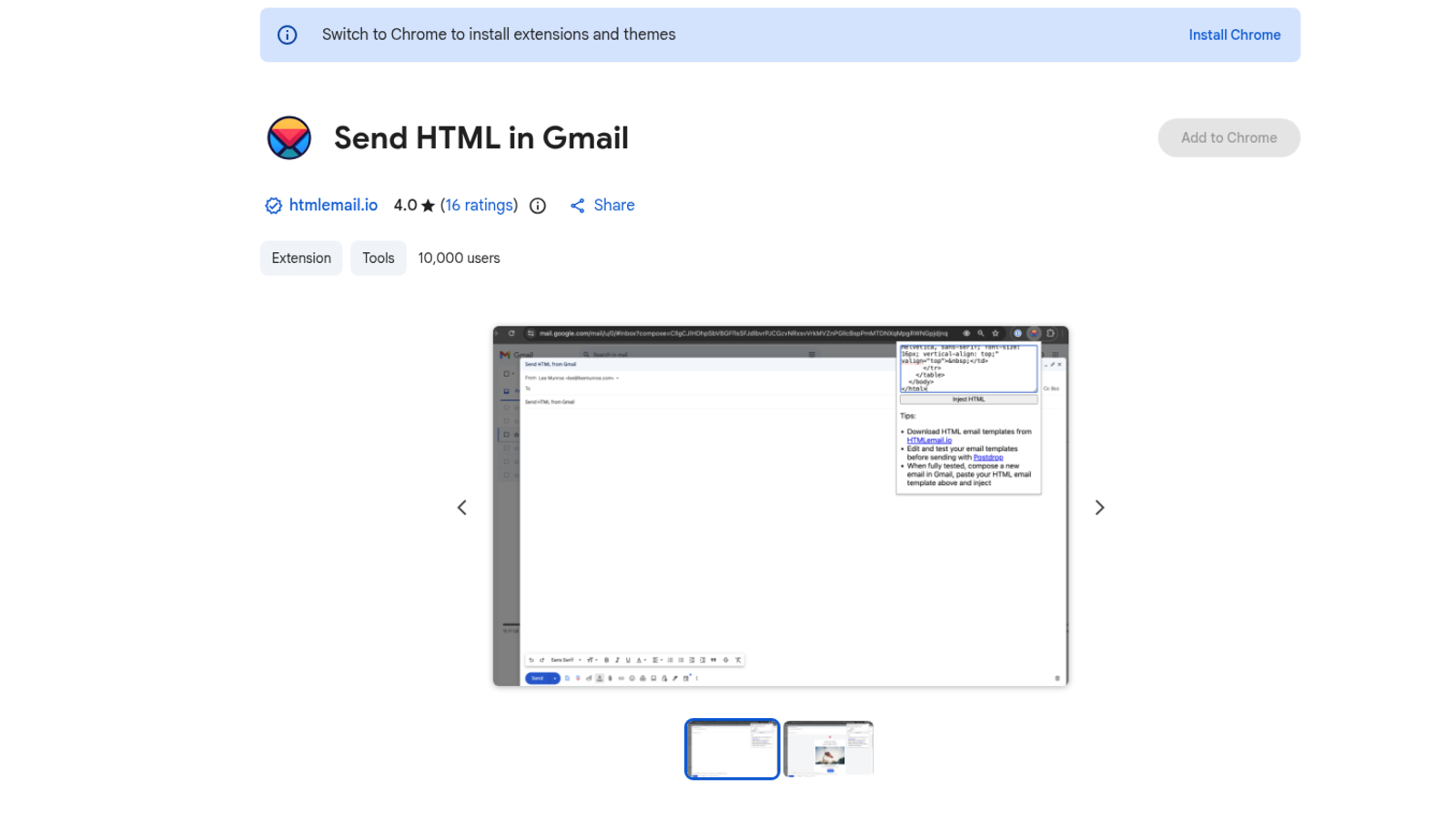
If you send HTML from Gmail regularly, the copy-paste dance gets old fast. That's exactly the gap the Send HTML in Gmail Chrome extension closes. Built by the htmlemail.io team, it adds a small panel to Gmail itself: open a compose window, paste your raw HTML source into the extension's textarea, click Inject HTML, and the rendered result appears directly in the message body — no saving files, no browser round-trip, no separate tabs.
A few practical notes from real use:
- It takes source, not a rendered page. Unlike the manual method, you paste actual HTML code — the extension handles the rendering and injection for you. That makes it the natural endpoint of a developer workflow: build, test, copy source, inject, send.
- It works with Google Workspace. Custom-domain accounts behave the same as personal Gmail, so branded sends from you@yourcompany.com work fine.
- It's actively maintained. The current release (v1.2.1, updated April 2025) has 10,000+ users on the Chrome Web Store, and it's free.
- Your HTML still needs to be Gmail-ready. Injection solves the getting-it-into-Gmail problem, not the rendering problem — inline CSS and hosted images (covered below) are still on you.
Method 3: Build, Test, and Copy from Postdrop
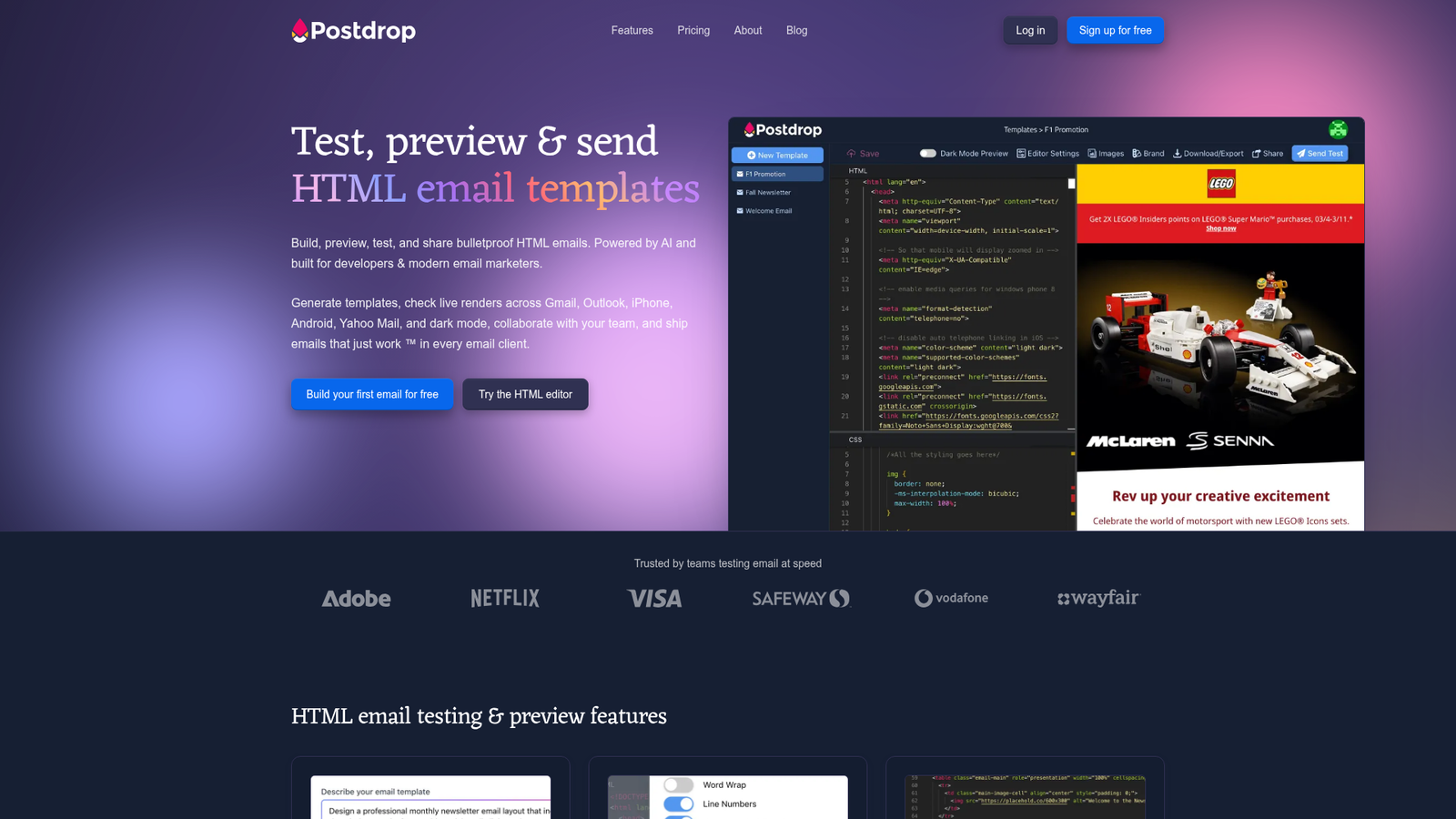
Both methods above assume you already have finished, Gmail-safe HTML. That's the part Postdrop.io covers. Paste an existing template into Postdrop's editor — or generate one with its AI — and you get a live preview alongside your code, automatic CSS inlining, and client renders for Gmail, Outlook, and Apple Mail before anything gets sent. It's the missing pre-flight step for either sending method.
The Postdrop-to-Gmail workflow, end to end:
- Bring in your template. Paste your HTML into the editor, pick one of the free starter templates, or describe what you need and let the AI generate a first draft.
- Edit with live feedback. Adjust copy, colors, and layout with the preview updating as you type. Keep your CSS in a normal
<style>block — Postdrop inlines it for you, which matters enormously for Gmail (see below). - Check the renders. Preview across clients and dark mode so you're not surprised after sending — the pre-send routine from our email testing guide.
- Copy the right thing. If you're using the manual method, select and copy from Postdrop's preview pane — the rendered email, not the code — and paste that into Gmail's compose window, as the htmlemail.io guide recommends. If you're using the Send HTML in Gmail extension, export or copy the inlined source instead and paste it into the extension's textarea.
The Gmail Gotchas That Bite Every Method
However your HTML gets into the compose window, these four constraints still apply:
- Images must be hosted online, publicly. Gmail won't embed your local image files into the layout — anything not referenced by a public URL ends up as an attachment instead of appearing in place. Upload images to your own server, object storage, or a CDN, reference them with absolute
https://URLs, and confirm they load in an incognito window (auth-protected links will be broken for everyone but you). - Inline your CSS. Pasted rich content keeps element-level formatting, but
<style>blocks in the head don't survive the trip — and Gmail strips or ignores much of what does. Every style that matters needs to live in astyle=""attribute on the element itself. This is tedious by hand, which is why an automatic CSS inliner should be part of the workflow, not an afterthought. - Stay under the ~102KB clip. Gmail truncates messages larger than about 102KB behind a "View entire message" link — and clipping also hides whatever sits at the bottom of your email. Keep the HTML lean: no unused styles, no base64-embedded images, no leftover commented-out blocks.
- Send a test first. Always. Send to yourself and at least one other client before the real audience. Check it on mobile, check it with images blocked, click every link. Two minutes of testing catches what an hour of building missed.
Which Method Should You Use?
A quick decision guide:
- One-off send, no installs allowed: the browser copy-paste trick. Save, open, select all, copy, paste.
- Regular sends from Gmail or Workspace: the Send HTML in Gmail extension — paste source, inject, send, done.
- Anything where the template isn't finished yet: build and verify in Postdrop first, then hand off to either method above.
- Real campaigns to a list: Gmail is the wrong tool — it has no unsubscribe handling, no analytics, and sending limits. Move the finished template into a proper ESP; our guide to exporting HTML emails to Mailchimp, HubSpot, and Klaviyo covers that path.
Bottom Line
Gmail hiding its HTML editor isn't the end of designed email from your own inbox — it just moves the rendering step somewhere else. Render in a browser and paste the result, inject source directly with the Send HTML in Gmail extension, or build and verify in Postdrop and copy out whichever form your sending method needs. Whatever route you take, the fundamentals don't change: host your images publicly, inline your CSS, stay under the clip limit, and send a test before you send the real thing. Do that, and "just send it from my Gmail" goes from an eye-roll to a five-minute job.
References: htmlemail.io's guide to how to send HTML emails in Gmail, the Send HTML in Gmail extension on the Chrome Web Store, and Postdrop.io. Internal: our guides to inlining CSS in HTML emails, Gmail vs Outlook vs Apple Mail rendering differences, testing HTML emails before sending, and exporting HTML emails to Mailchimp, HubSpot, and Klaviyo.