
Live Email Client Previews Are Now in Postdrop
An email that looks right in a browser is not necessarily an email that looks right in an inbox. Gmail may rewrite your CSS. Outlook on Windows may interpret the layout through a Word-based rendering engine. Apple Mail may honor modern styles that another client strips out. Dark mode adds another layer of transformations on top. Until you see the actual client render, you are still making an educated guess.
That is why we have added Live Client Previews to Postdrop. You can now generate rendered previews across 15 of the email environments your subscribers actually use—without leaving the editor, maintaining a shelf of devices, or sending the same test message to a collection of personal accounts. It is the testing step from our pre-send QA guide, built directly into the place where you create and refine the email.
Fifteen Client Previews, One Test Run
The first release covers the environments that expose the most common and expensive rendering differences: Gmail across Android, iOS, web, and dark mode; Apple Mail across iOS and macOS; Outlook across Windows, macOS, web, iPhone, and Android; plus Yahoo Mail on the web.
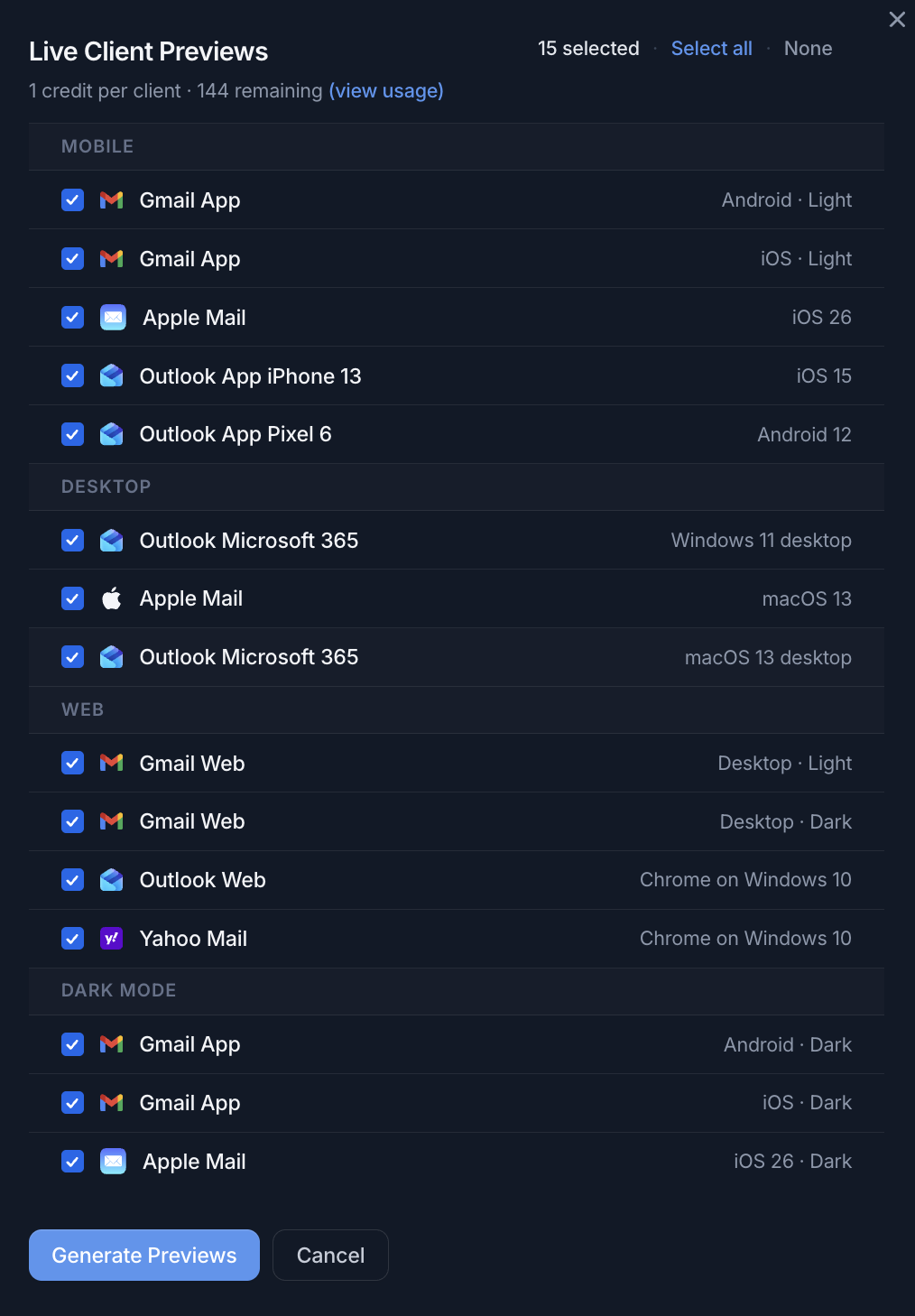
Here is the complete launch lineup:
Mobile
- Gmail App on Android in Light Mode
- Gmail App on iOS in Light Mode
- Apple Mail on iOS 26
- Outlook App on iPhone 13 running iOS 15
- Outlook App on Pixel 6 running Android 12
Desktop
- Outlook Microsoft 365 on Windows 11 desktop
- Apple Mail on macOS 13
- Outlook Microsoft 365 on macOS 13 desktop
Webmail
- Gmail Web on desktop in Light Mode
- Gmail Web on desktop in Dark Mode
- Outlook Web in Chrome on Windows 10
- Yahoo Mail in Chrome on Windows 10
Dark Mode
- Gmail App on Android in Dark Mode
- Gmail App on iOS in Dark Mode
- Apple Mail on iOS 26 in Dark Mode
You can select all 15 or spend your preview credits only on the clients relevant to the campaign. A B2B audience may make Outlook on Windows non-negotiable. A consumer mobile product may prioritize Gmail and Apple Mail on iOS and Android. The point is not to produce the largest possible screenshot wall every time; it is to make the right client coverage repeatable.
Why a Browser Preview Is Not Enough
A browser preview answers one useful question: does the HTML look right in this browser? An email client preview answers the question that decides whether the campaign is ready: what will the subscriber see?
Email clients routinely change or ignore parts of the source:
- CSS support differs. A property that works in Apple Mail may be ignored by Gmail or Outlook.
- Styles may be rewritten. Webmail clients sanitize markup and transform CSS before rendering it.
- Outlook has its own layout rules. Desktop Outlook on Windows can break spacing, backgrounds, buttons, and columns that look correct everywhere else.
- Fonts fall back differently. If a web font does not load, line lengths change, buttons grow, and carefully balanced headings wrap.
- Images behave differently. Blocking, scaling, high-density screens, and background-image support all affect the composition.
- Dark mode is client-specific. Some clients honor your dark CSS, some partially invert colors, and some transform nearly the whole message.
Our recent guide to how email clients handle dark mode differently shows why one generic “dark preview” cannot represent Gmail on iOS, Gmail on Android, Apple Mail, and Outlook. Postdrop now gives you those distinct renders instead of asking you to infer one from another.
The Bugs Live Previews Catch Before the Send
The Outlook-Only Layout Break
Your two-column module is balanced in Gmail and Apple Mail, but the Windows Outlook render stacks it incorrectly or adds unexpected space below an image. That is not a theoretical edge case; Outlook’s rendering behavior is different enough that we wrote an entire guide on why Outlook breaks HTML email. A dedicated Windows 11 Microsoft 365 preview gives that risk its own test rather than hiding it inside a generic desktop size.
The Mobile Wrap You Did Not Expect
A long CTA fits on desktop but wraps to two lines in the Gmail app. The navigation links collide on an iPhone. A fixed-width image pushes the message wider than the viewport on Android. Mobile previews reveal the actual client treatment, not merely what happens when a desktop browser window is made narrow.
The Dark-Mode Brand Failure
A transparent dark logo disappears after the background is transformed. Button text loses contrast. A hero image keeps its white canvas while the surrounding section turns charcoal. By putting Gmail Android Dark, Gmail iOS Dark, Apple Mail iOS Dark, and Gmail Web Dark beside their light counterparts, Postdrop makes those transformations easy to compare.
The Webmail Rewrite
Gmail Web, Outlook Web, and Yahoo Mail all operate inside a browser, but they do not render the same source in the same way. Each has its own sanitization and support decisions. Seeing all three is more useful than opening the raw HTML file in Chrome and calling that “webmail tested.”
Test the Clients That Match Your Audience
Comprehensive testing does not have to mean selecting every option for every tiny copy edit. A good workflow uses coverage in layers:
- During development, test the risk. If you are fixing an Outlook issue, render Windows Outlook. If you are adjusting dark colors, compare the dark-mode group. If you are changing responsive layout, choose Gmail and Outlook mobile.
- Before review, test the representative set. Cover mobile, desktop, webmail, and dark mode with the clients most common in your audience.
- Before the final send, run the full matrix. Generate all relevant previews after the HTML and content are locked, then check each render for regressions.
- Send a copy to yourself. Use Postdrop’s test-send flow to confirm the delivered message on the devices and accounts you personally rely on.
This keeps iteration fast without turning the final QA pass into a gamble. It also gives teams a shared artifact for review: instead of debating whether a template “should” work, everyone can look at the same client output.
What to Check in Every Preview
Do not scan only the top of the message and approve it. Use the same short checklist for each client:
- Structure: columns, stacking, content order, widths, and unexpected horizontal scrolling.
- Spacing: padding around cards, image gaps, paragraph rhythm, and footer alignment.
- Typography: font fallbacks, line wrapping, clipped text, and readable legal copy.
- Buttons: shape, background, label contrast, size, and surrounding whitespace.
- Images: dimensions, cropping, retina sharpness, transparent backgrounds, and useful alt text.
- Color: brand accuracy, text contrast, dark-mode transformations, and visible dividers.
- Content: personalization fallbacks, preheader behavior, links, and the unsubscribe area.
When a render fails, return to the Postdrop editor, change the HTML or CSS, and generate the affected clients again. That edit-preview-fix loop is much faster than exporting the template, sending multiple tests, opening several inboxes, and trying to remember which screenshot belongs to which revision.
Why This Belongs Inside the Editor
Email QA tools have long understood the value of adding high-impact environments. When Mailgun announced Gmail on iOS previews for Inspect, it highlighted exactly the problems that make client rendering indispensable: mobile layout breaks, image inversions, contrast failures, and differences between Light and Dark Mode.
Postdrop’s approach is to bring that confidence into the same focused workflow you already use to write, paste, edit, and inspect HTML email. There is no separate handoff between building and testing. The source and its client results stay close together, making QA part of creation rather than a final hurdle someone remembers five minutes before launch.
Bottom Line
Your subscribers do not open “HTML.” They open Gmail on an iPhone, Outlook on Windows, Apple Mail on a Mac, Yahoo in Chrome, and dozens of other combinations with their own rendering rules. Postdrop Live Client Previews let you see 15 of the most important combinations—including dedicated dark-mode environments—before the campaign leaves your hands.
Build the email, select the clients that matter, generate the live previews, fix what differs, and send a final test to yourself. That is the difference between hoping an email works and knowing what your audience is about to see. Open Postdrop and run your next email through the new preview suite before you ship it.
References: Mailgun — Gmail on iOS Previews Now Available in Inspect and Postdrop. Internal: how to test HTML emails before sending, the client-by-client dark mode matrix, why Outlook breaks HTML email, and previewing React email templates across clients.