

How to Preview React Email Templates Across Gmail, Outlook, and Apple Mail
If you're shipping transactional or lifecycle email in 2026, there's a good chance you're writing your templates in React Email. The Resend-maintained component library has become the default way to build email at SaaS companies — TypeScript-first, JSX components, Tailwind support, and a dev server that hot-reloads as you edit.
It's a genuinely better authoring experience than MJML, Maizzle, or hand-rolled tables. But there's one thing the React Email dev server doesn't do: tell you whether the HTML it produces will actually render correctly in the inboxes your users are reading.
This guide walks through why that gap exists, what specifically breaks, and the testing workflow we recommend before shipping any React Email template to production.
Why the React Email Preview Isn't Enough
When you run npm run dev in a React Email project, you get a local preview at localhost:3000 that renders each .tsx template as it would appear in a Chromium browser. That's useful for iterating on layout and copy — but Chromium is not where your emails will be opened.
The actual rendering engines your users see include:
- Apple Mail (macOS, iOS, iPadOS) — uses WebKit. About 55% of opens globally, per Litmus' email client market share data.
- Gmail web — uses Blink, but strips a long list of CSS properties and rewrites your HTML structure on receipt.
- Gmail iOS / Android apps — different rendering quirks from Gmail web, especially around dark mode color inversion.
- Outlook on Windows (2016, 2019, 365) — still uses the Microsoft Word HTML rendering engine, which doesn't support flexbox, grid, or most modern CSS.
- New Outlook (Windows + Mac) — based on the web version, much better support but with its own quirks.
- Outlook.com — yet another renderer with its own CSS support matrix.
- Yahoo Mail, ProtonMail, Thunderbird, Samsung Email — long tail with surprising bugs.
The React Email components are well-engineered to produce table-based HTML that tries to be compatible across these clients. But "tries" is not "verified." We've seen production templates that look perfect in the React Email preview and break in three of the eight clients above.
The Real Failure Modes
Here are the actual bugs we see most often when teams ship React Email templates without cross-client testing:
1. Tailwind classes that don't survive Outlook
React Email's Tailwind integration inlines your utility classes into style attributes at build time. That works for most properties — but Outlook on Windows ignores border-radius, box-shadow, linear-gradient backgrounds, and any rgba() color with transparency. Your beautifully rounded button becomes a sharp rectangle. Your subtle gradient header becomes a flat solid color (or worse, transparent).
2. Custom fonts that fall back unevenly
If you import a Google Font in your React Email <Head> with <Font>, Apple Mail and the iOS Gmail app will use it. Outlook will not, and Gmail web only honors web fonts when the user is signed in to a Google Workspace account. Your fallback font stack matters more than the primary font — and the React Email preview won't show you what each client actually picks.
3. Dark mode inversions you didn't ask for
Apple Mail and Outlook automatically invert colors in dark mode based on heuristics that vary by client. A light-grey background you chose for visual hierarchy can flip to dark grey while the text on top stays dark — leaving an unreadable pane your preview never showed you.
4. img elements without explicit width/height
React Email's <Img> component requires you to pass dimensions, but it's easy to forget on logos or icons. Without explicit attributes, Outlook ignores the natural image size and renders at the source dimensions — meaning a 1024×1024 logo blows out your layout the moment Outlook receives it.
5. Conditional content for retina/high-DPI
If you're using 2x images for retina displays, you need to know which clients honor srcset (almost none) versus which respect explicit width/height on a high-resolution source (most). Getting this wrong means blurry logos in Gmail and oversized hero images in Outlook.
The Workflow We Recommend
Here's a four-step loop that catches the issues above before they ship to users.
Step 1: Author and iterate in React Email's dev server
Use the React Email preview for fast layout iteration, copy changes, and prop-driven variants. This is what the local dev server is good at — instant feedback on the React side.
Step 2: Render the production HTML
React Email exposes a render() function that returns the final HTML string for a given component. Add a small script to your project that renders each template and writes the output to disk:
// scripts/render-emails.ts
import { render } from "@react-email/render";
import fs from "node:fs/promises";
import WelcomeEmail from "../emails/welcome";
import OrderConfirmation from "../emails/order-confirmation";
import PasswordReset from "../emails/password-reset";

const templates = [
  ["welcome", <WelcomeEmail name="Test User" />],
  ["order-confirmation", <OrderConfirmation orderId="1234" />],
  ["password-reset", <PasswordReset resetUrl="https://example.com/r/abc" />],
] as const;

await fs.mkdir("./out", { recursive: true });
for (const [name, element] of templates) {
  const html = await render(element, { pretty: true });
  await fs.writeFile(`./out/${name}.html`, html);
  console.log(`✓ ${name}`);
}
This is the HTML that will actually go on the wire when Resend or your ESP sends the message — including all of React Email's table compilation and CSS inlining. It's what you need to test, not the React preview.
Step 3: Visually QA the rendered HTML across real clients
Paste each rendered HTML file into Postdrop to see how it actually renders in Gmail, Outlook, Apple Mail, Yahoo, and the other clients that matter for your audience. This is the step most teams skip — and it's where the bugs above get caught.
For a more in-depth breakdown of how the major clients differ, our guide to email rendering differences walks through the specific quirks per client. The Outlook-specific ones are covered in why Outlook breaks your HTML email.
Step 4: Wire it into CI
Once your React Email templates are stable, you can prevent regressions by:
- Running the render script as part of your build (catches templates that fail to render at all).
- Snapshot-testing the output HTML so any unintended change to the rendered markup shows up in a code review.
- Running tools like html-validate against the rendered output to catch invalid markup that some clients will choke on.
The full visual cross-client check still requires human eyes (or Postdrop's preview) — but the structural checks can be fully automated.
What About Sending Test Emails to Yourself?
The traditional approach — sending a real email to your own Gmail and Outlook accounts — works, but it's slow and incomplete. You can't easily test in clients you don't have accounts on (most teams don't have a Yahoo Mail or ProtonMail account sitting around). You're at the mercy of your sending reputation and provider quirks. And iteration is brutal: change a class, send a new email, wait for it to land, refresh, repeat.
It's worth doing once before launch as a final sanity check, but it shouldn't be your primary feedback loop.
Bottom Line
React Email is the best authoring experience email development has ever had. But it's a build tool, not a QA tool — and the preview server is showing you Chromium, not your users' actual inboxes.
The fix is a tight render-to-static-HTML script, a visual QA step against real client renderers, and basic structural validation in CI. Build that workflow once and every future template benefits from it. Skip it, and you'll keep finding out about Outlook bugs from your customers instead of from your own dev environment.
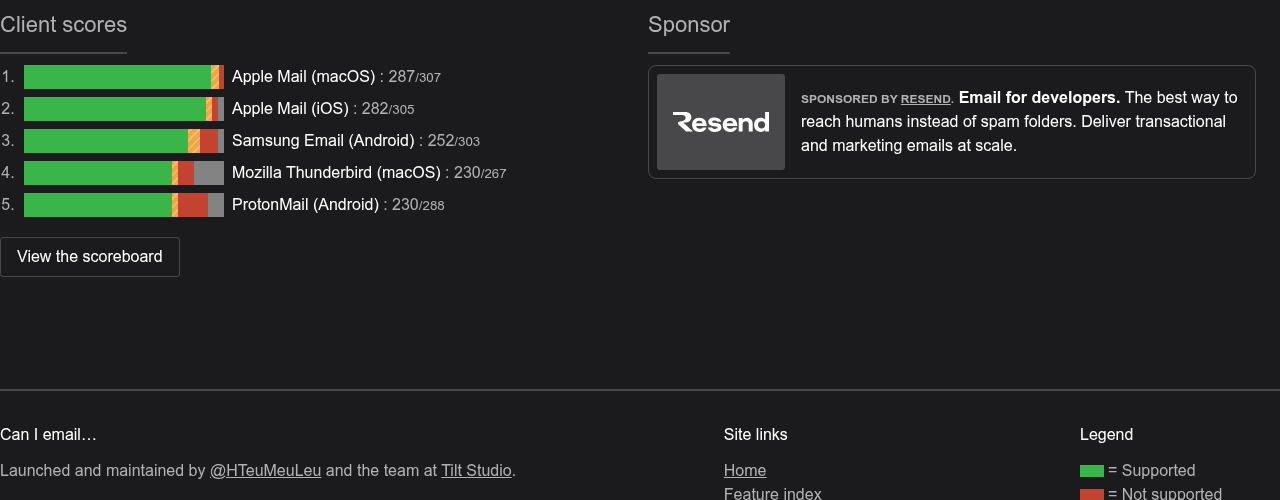
References: React Email docs, caniemail.com for the per-feature client support matrix, and Litmus' email client market share tracker for prioritizing which clients matter most for your audience.